Friday, 9 March 2018

Spreadsheets and Project Management - Made for Each Other


We have seen a surge in Project Managers and IT Managers engaging with us for a Project Management Solution. And in our efforts to help them achieve their desired outcomes and ease their challenges we found them to be eager to move from spreadsheet management to true project management.

As soon as people hear – “Project” they run to open spreadsheets on their computers to start taking notes, making a plan, listing tasks and entering date and time information.

But the sad part is, these “source of information” become obsolete in less than an hour once they are live (read shared with the team).

Conventional methods are somewhat suited for rudimentary TO-DO list management or to maintain notes. They have never been able to keep pace with the evolving technology landscape.

They may appear to be cost savers in the short term, but the resulting cost of inefficiency is far greater than the dollars saved.

For every $1billion invested in the U.S.; $122million is wasted due to lacking project performance.

If you’re a Project Manager, read how a project management software can help and use this guide to make a case for investing in a solution that enables
  • Single pane of Organizational view
  • Data driven and analytical approach
  • Quicker & accurate decision making driven by real-time granular data
  • Unbridled clarity around business directives and organization goals
  • Centralized collaboration among workforce
  • Last mile integration of team(s) goals with that of the organization
  • Real time monitoring of key deliverables and milestones
  • Highly coordinated project planning and execution
  • Improved and automated clutter free communication
  • Well defined employee performance management and engagement
  • Highly motivated and productivity oriented workforce
Why Spreadsheets Don’t Work for the modern Project Managers

Multiple Versions

With a globally dispersed team of multiple members, everyone making edits to documents, it makes project managers spend a lot of time in consolidating updates to keep everyone on the same page.

Having multiple versions of a file shared by various team members make it increasingly difficult to understand what has been done, what needs to be done, and what needs to be done next.

As the project progresses, more data are generated, further contributing to the chaos. Instead of spending time adding value to the organization, project managers feel more like a “Spreadsheet Manager”.

Project management software solutions are almost always cloud-based, which means that team members and project managers can align around “one true source of information”.

Tuesday, 27 February 2018

Product Update: Weekend and Holidays Management in Orangescrum


The last couple of weeks have been busy, really busy for our product team at Orangescrum. Thanks to our ever-engaged Orangescrumers who are ever vocal about our SaaS (Cloud) edition. It is this continuous supply of adrenaline rush that keeps us going.

“That’s a good headache for us” as quipped by my Manager.

We have reviewed all the feedback and have acted swiftly as ever to give our promoters what they want most – as personalized a project management experience as possible!

With the latest release, you can now

  • Define the working hours of the company
  • Define your company’s weekend days
  • And the company holiday list for the year
  • Update Tasks directly from the Weekly Timesheet
How to define working hours of the company?
The working hours are taken as 8 hours by default. And there was no way for you to change it.

But now you can define your company’s working hours within Orangescrum. If you don’t change it, it will remain as 8 hours by default.

These working hours are important for your Resource Allocation.

While you assign tasks to a resource, Orangescrum will let you know the availability of a resource as per the working hours and the estimated hours of the task for a given day.

To define working hours of your company;
  • Login to Orangescrum
  • Click on Settings and navigate to Company Settings 
  • Click on Resource Setting


Wednesday, 21 February 2018


Hello Orangescrumers!

Good news for all of you. We’ve released the Intuitive Project Overview Dashboard for all our SaaS (Cloud) users; a new way of project, task and resource monitoring.

How to view the Project Overview page?

Once you have created a project, tasks, and allocated resources, you can start monitoring your project status and progress on the “Project Overview” page.
To navigate to Project Overview page,

  • Click on Projects from the left menu panel
  • On the project page, click on project title
  • Or on the Task List page, hover on the icon, right to export and below settings icon and click on Overview of the options
What is New in the Project Overview? 

First Layer:

The first layer of project overview contains the following information:
  • Project Status (Started, On Hold, Stack, Completed)
  • Real-time project progress status: It shows in percentage of total closed tasks against total tasks in the selected project
  • Project Name
  • Edit Project: Click on the edit icon to edit the project metrics or names, modify as your requirement and click on update
  • Instant project start and end dates

Second Layer:

These are all the important project metrics every Project Managers wish to have in real time. In this layer you can know:
  • Total Number of Tasks of the project
  • Total Time Entry
  • Total Number of Activities
  • Real Time Task Status report;
    • Total Number “New” tasks
    • Total Number “In Progress” tasks
    • Total Number “Resolved” tasks
    • Total Number “Closed” tasks
    • Total Number of tasks
  • Time Log report in terms of Total Billable, Non-billable hours and total time spent on the project
  • Team Member’s information with Total Task assigned, Overdue Task, Billable Hours and Non-Billable hours of each resource
Click on “+” icon to add a new team member/resource to the project or click on – to remove the user from the project

Monday, 19 February 2018

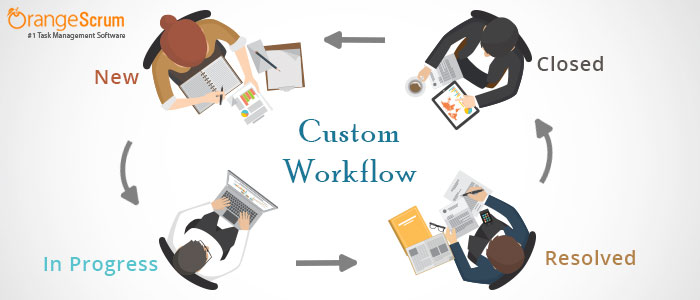
How to Create Custom Workflow in Project Management App Orangescrum


A workflow consists of a sequence of actions needed to complete a task or a project. A workflow reflects the working culture of your team or organization or a set process you need to follow for certain activities and projects.

Workflow management is all about the setup, performance, and monitoring of a defined sequence of processes and tasks, with the broad goals of increasing productivity, reducing costs, becoming more agile, and improving information exchange within an organization.

There is no certain rule to create a workflow. One must consider stakeholder inputs, the objective and current processes to define a robust workflow. Always try to keep your workflow simple and effective.

Here are few common workflows used by Organizations

  • Web Development Workflow
  • Product Development Workflow
  • Lead Generation Workflow
  • Content Management Workflow
  • Marketing Workflow
  • Training Workflow
  • Applicant Tracking Workflow
  • Bug Tracking Workflow
Is it necessary to have a workflow?

As I said, it is not mandatory to have a workflow, but it is good to have standard workflows across your Organization for specific activities. And almost all organizations have their own per-defined procedures. A well –defined workflow gives clear information about the status of a task or project & real time indication of who’s responsible for the task and keeps everyone on the same page.

In Orangescrum, you can create your own custom workflow as per your own project requirements. You can have flow for each project individually or have one common flow across projects.

How to create a custom workflow in Orangescrum? 

To create custom workflow in Orangescrum;
  • Login to Orangescrum
  • Navigate to left menu panel and click on Add-ons
  • Click on Workflow Mgmt.